
This article will briefly explain to you about signing up customers, changing their details and assigning them to a markup group. All these settings will be done from your admin panel on your website. Consumers can be direct b2c or b2b(travel agents).
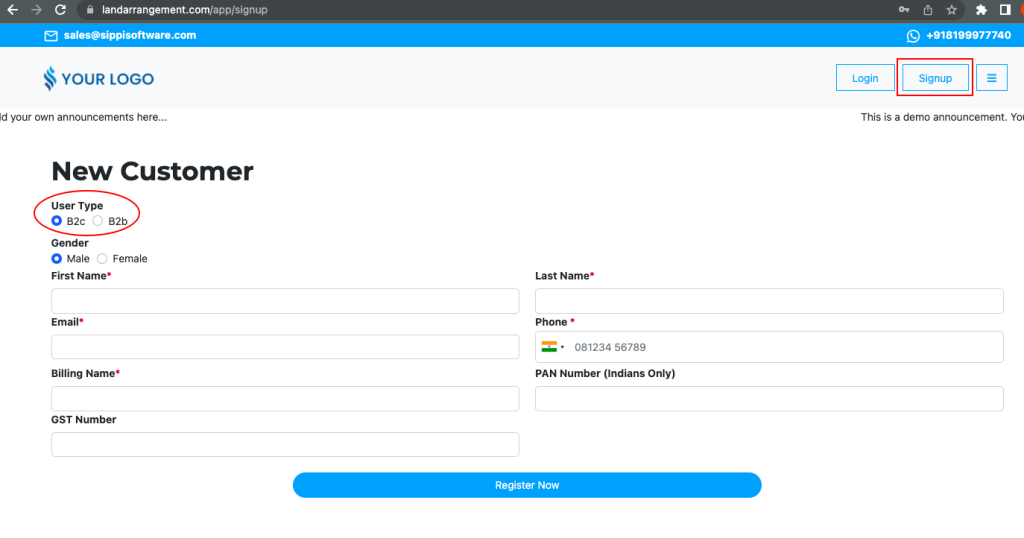
Sign-up form for customers:
Your customer will visit your site and then will find the option for signing up. As per their category, they will fill out the form. After that mail will be sent to their email ID for generating a password. Lastly, after creating a password they can log in on the site. B2C customers don’t need any approval, while B2B agents need to be unblocked in order to log in.
You can check the sign-up form in given image below:
Next, is the Customer Details Page.
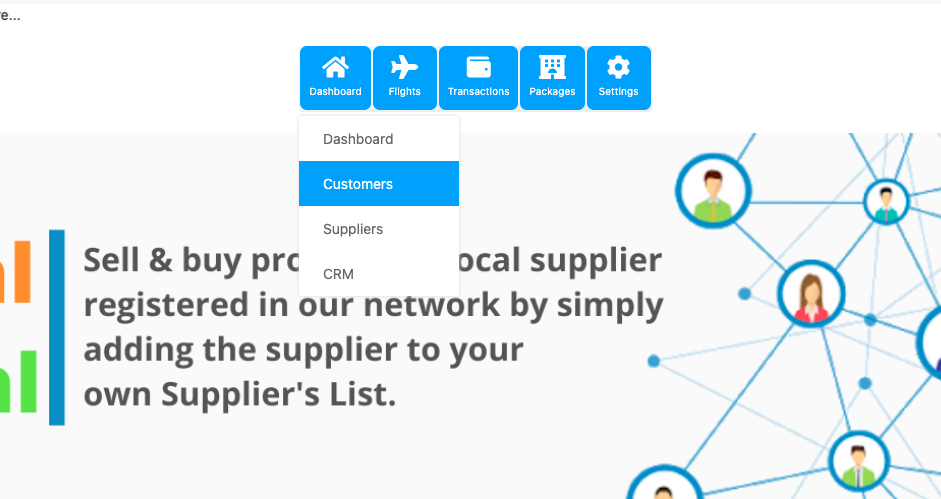
In order to go to the customer details page follow the steps given below:
- Go to your admin login, then go to the menu and dashboard.
- After that click on the dashboard option and customers, as shown in the below image.
CUSTOMER’S DETAILS OPTIONS:
# B2B and B2C: In the customer’s list, retail is mentioned below the customer’s name for B2C, and travel agents for B2B. Refer to the image displayed below for the same.
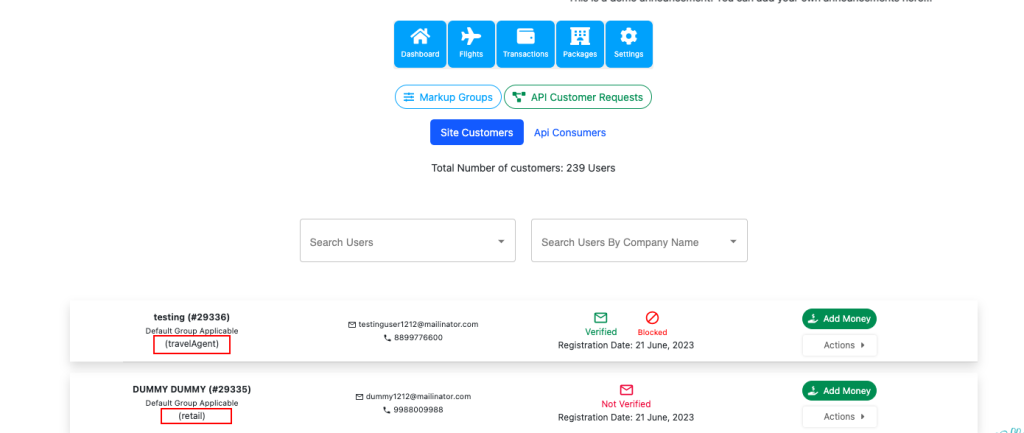
# Verified or Not Verified: Verified means that the customer/agent has created the password from the mail and vice versa.
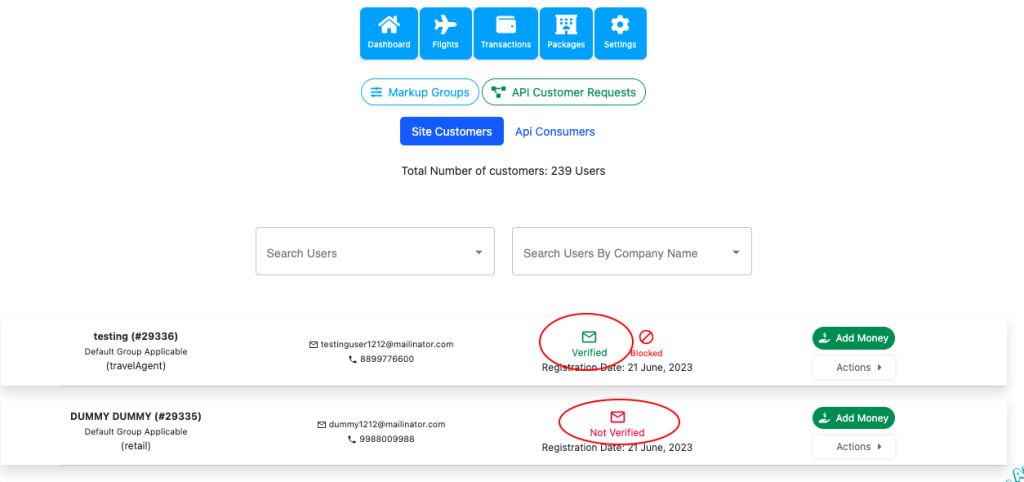
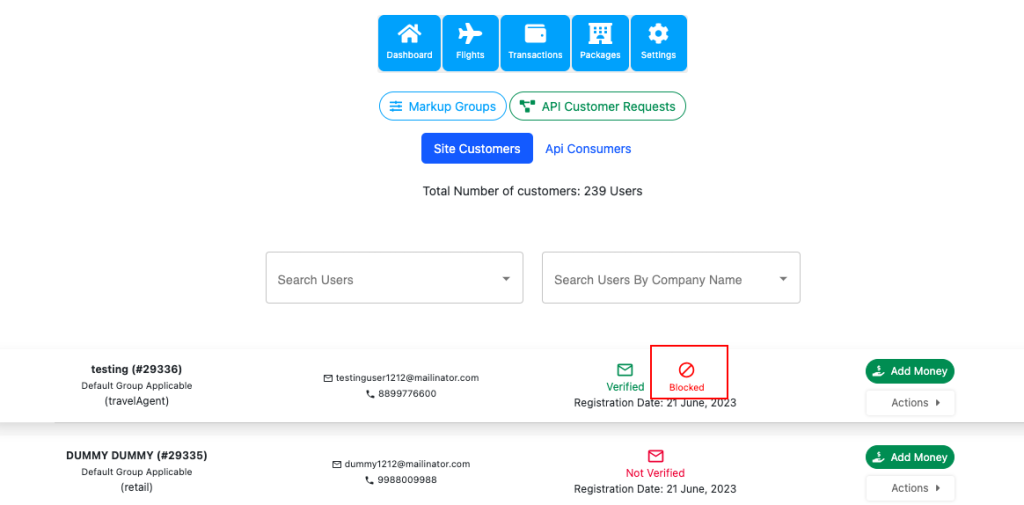
# Unblocking B2B: ‘Blocked’ will be written in front of the travel agent’s name when he/she registers. To unblock it click on Blocked and unblock the user.
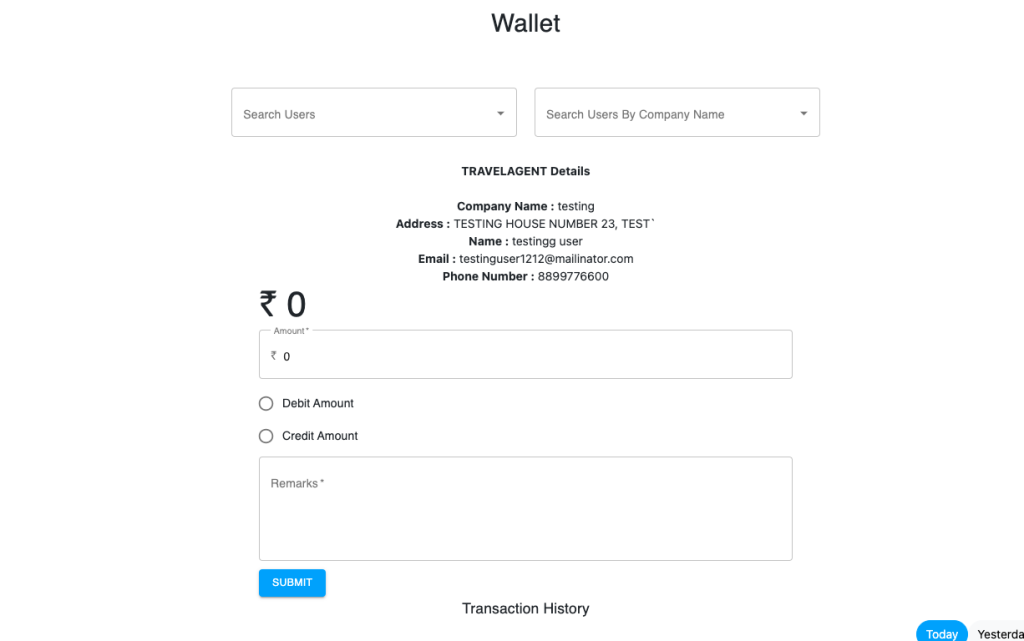
# Add Money: By clicking on add money option present in front of every customer, you can give credit or debit money from the wallet of that particular customer. You can check also check the transactions of that customer from that page. Check the below image of the ‘Add Money’ page.
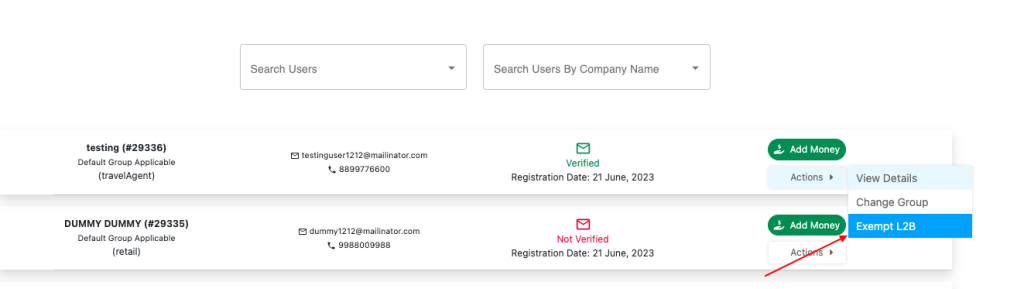
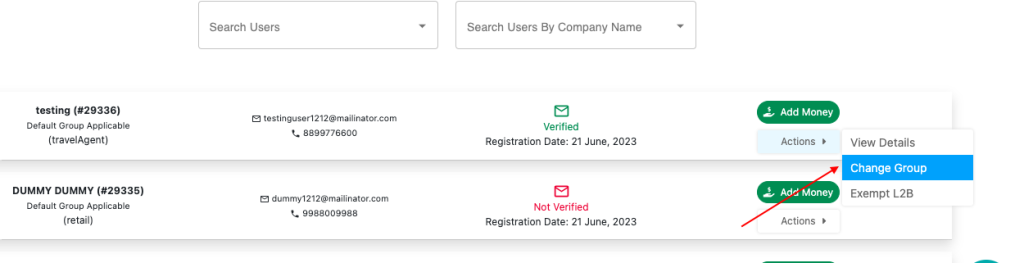
# Assigning customer to the markup group: You can assign the customer to a particular markup group. Click on ‘Actions’, then ‘change group’.
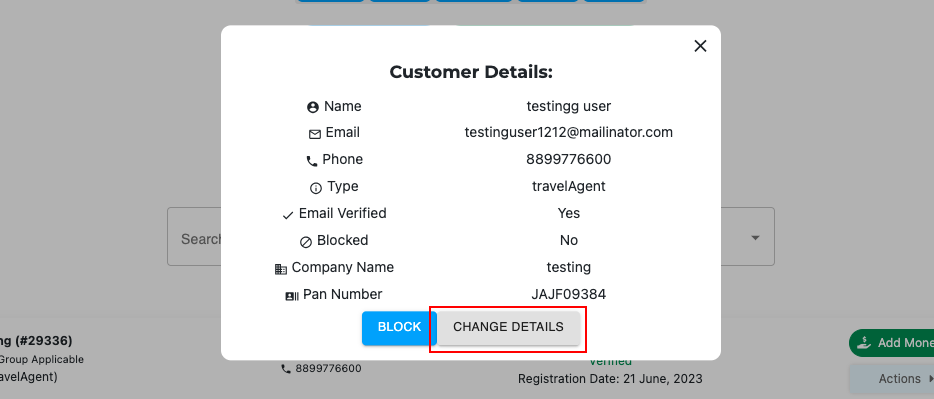
# Change details: You can change the details of your customers. Click on view details then change details. Simply do the amendments and click on submit.
# Exempt L2B: Your customer needs to maintain a ratio of 25:1, so by default, they get 25 searches if they do 1 booking on that, then searches continue otherwise they will not be able to search. So, if you want your customer to experience unlimited searches you can exempt him.
Click on ‘Actions’, then Exempt L2B.