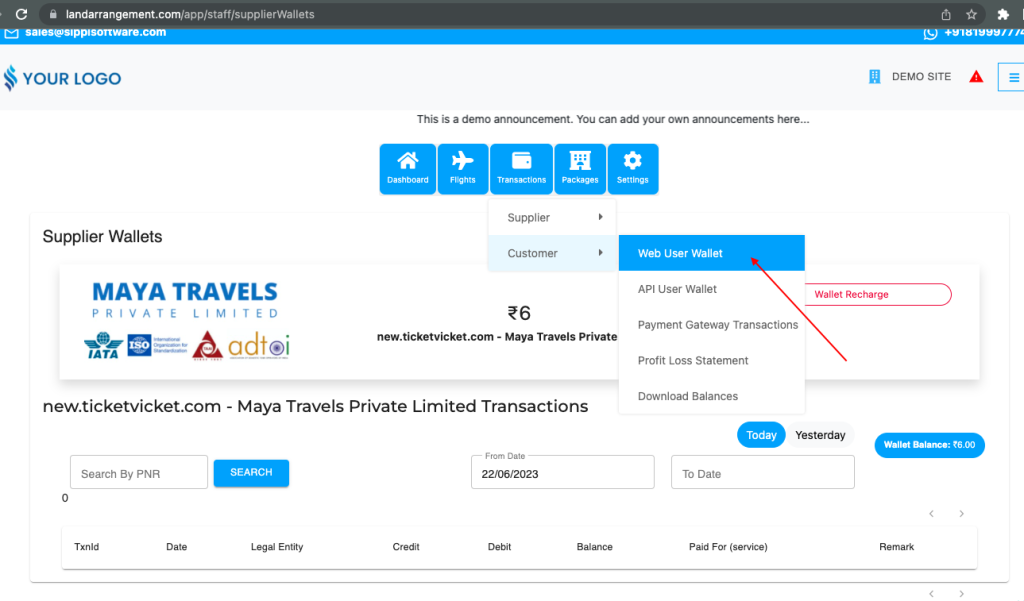

Your admin panel will be your main playland, you can check all the transactions and can maintain value with the supplier in this only. Tickets can be booked up to the amount that is present in your admin wallet. All the transactions that your customer will do, whether it is booking flights or flight deals, adding money to their wallet or admin giving value to them, everything will be visible in the admin login.
This article will explain to you the steps to add wallet money and manage transactions.
Steps to wallet top-up:
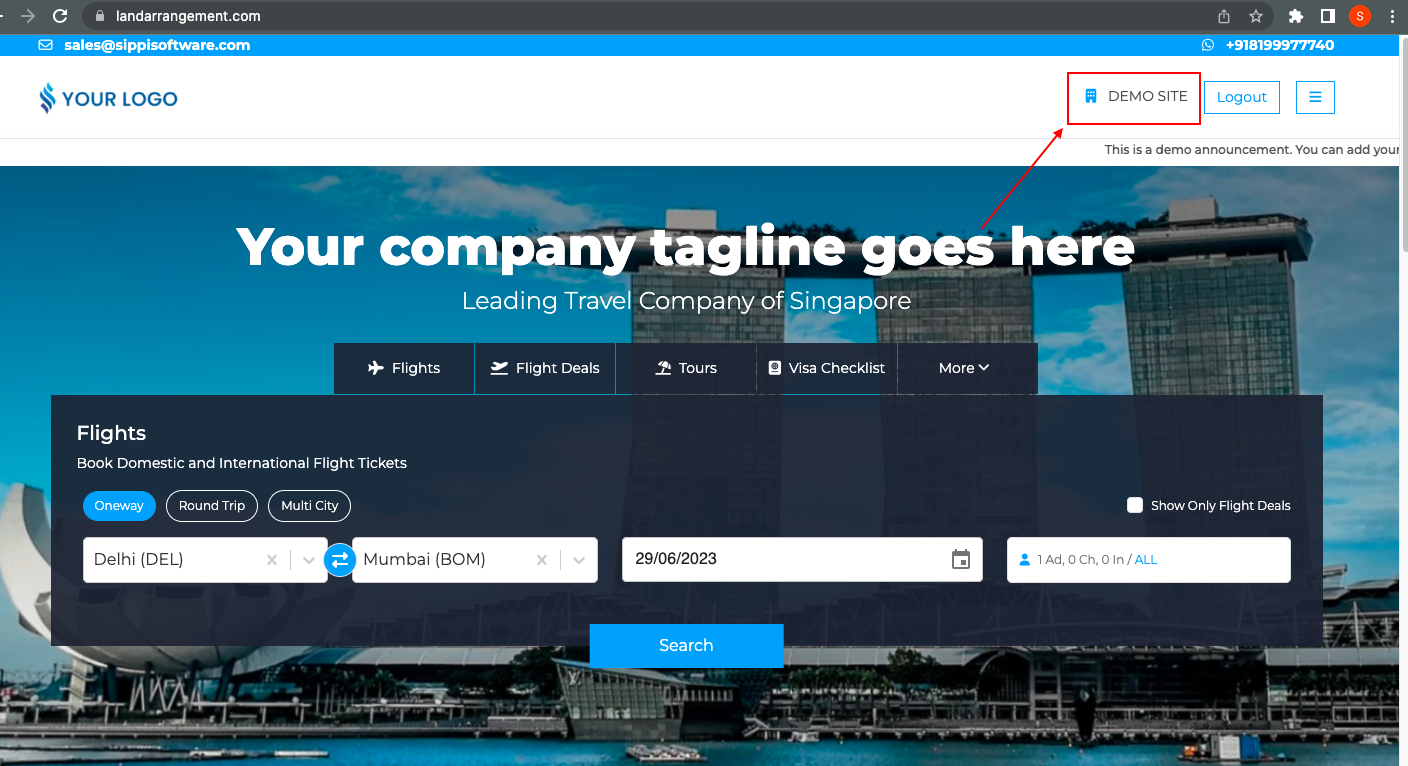
- Do admin login on your site, then click on your site name present on the left side of the menu bar as shown in the image below.
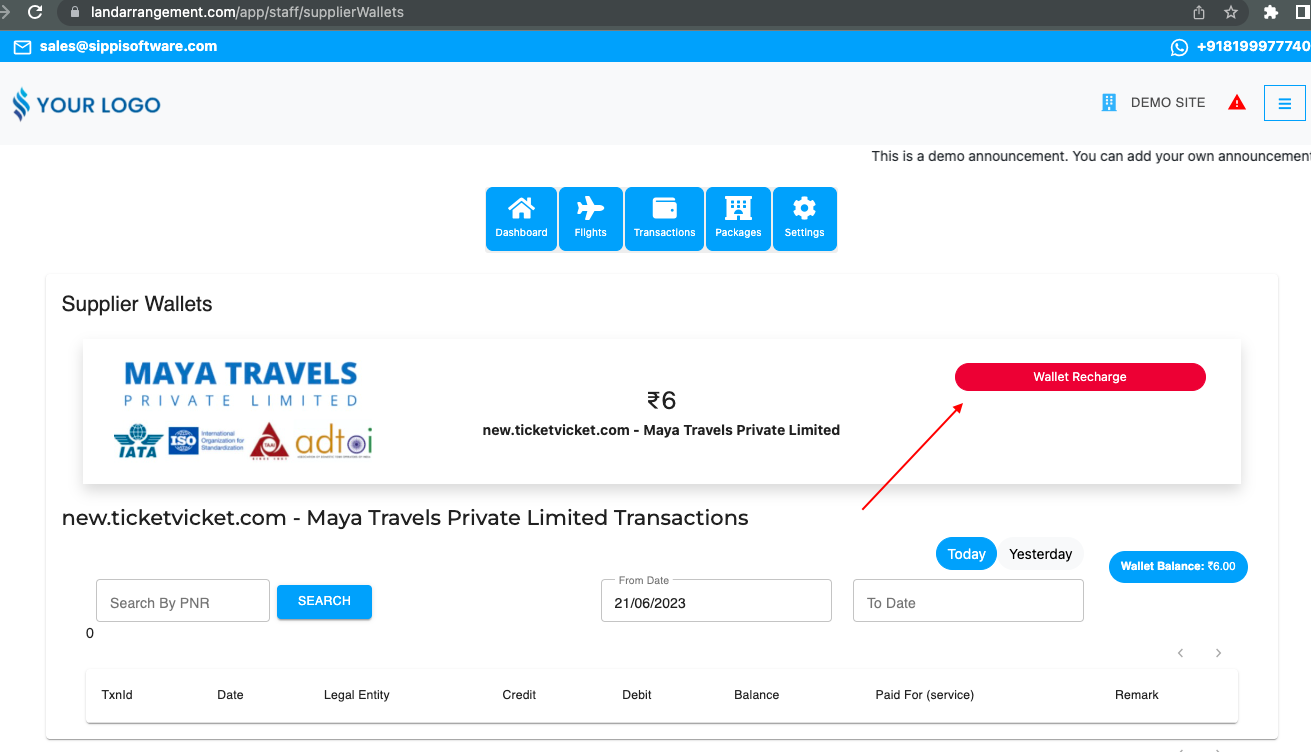
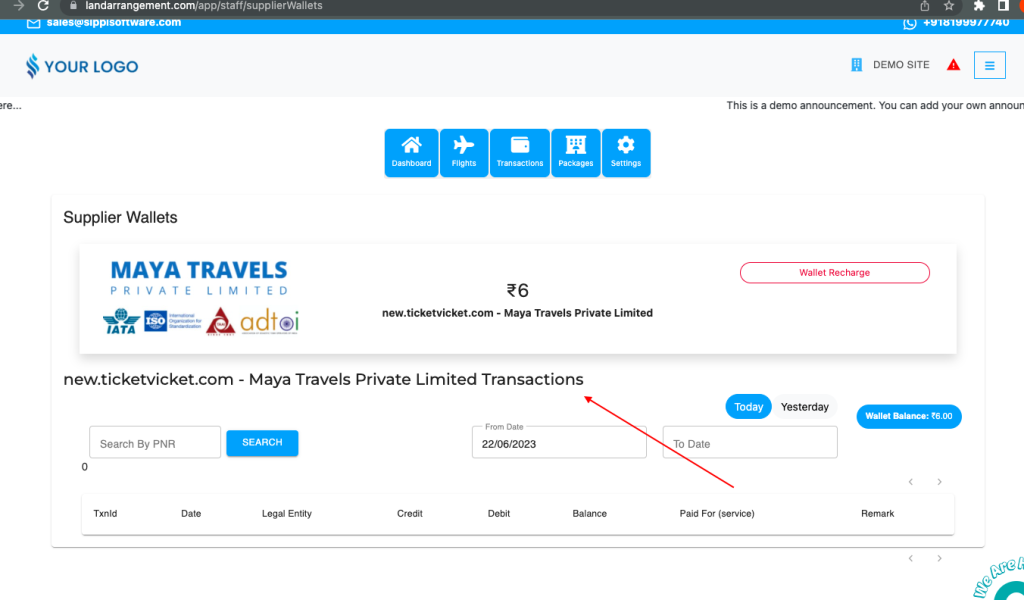
- Then supplier wallet page will open, after that click on the wallet recharge button present in front of the supplier’s name.
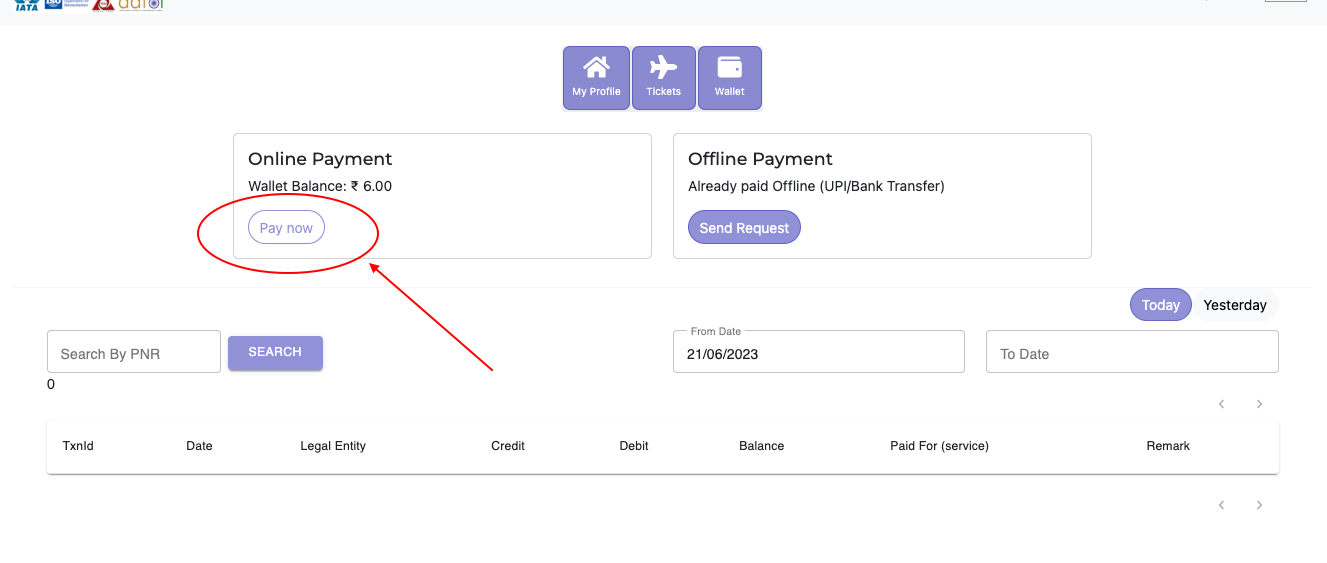
- Clicking on this option a new tab will open, where you will jump to the supplier’s site. You will be auto-logged in. Then click on your name visible in the top right corner next to the menu button, and select the pay now option.
- Then select the amount, and mode of payment and make the payment. After that you need to go back to your site on the supplier page you will see that the amount will be added to your wallet.
Now, where to check the transactions?
# Transactions with the supplier:
- Go to the Supplier Wallet page as mentioned in the above steps.
- Then scroll down, and you will see the section where all the transactions with your supplier will be visible.
# Customer’s transactions:
- Go to the dashboard, then click on transactions.
- Select consumer and Web User Wallet. Here you will see all the transactions of your site customers whether they are B2B or B2C.